
Reviewer help — for reviewers. Reviewing jobs: the quality score, auditing scales, approving or sending back.
Welcome
This manual is for reviewers: the people who check each finished calibration before its certificate is issued. It assumes no calibration experience. Read Calibration basics first if you are new to scales; a reviewer needs to understand what the technician did in order to judge it.
As a reviewer you work in the office app on a computer. You can look at everything there; the things you can change are the review decisions: auditing scales, approving or sending back a job, approving or returning a single calibration (with a reason when needed), and re-sending a job's email to the customer. Setting up customers, scales and schedules is the office admin's job.
Who does what in CertaCal
Everyone signs in with their own username and password. What you can see and do depends on your role, which the office sets in Settings › Company › Users. You only see what your role lets you act on: pages and lists you can't use don't appear at all. Auditors are the exception: they see everything and change nothing.
| Role | Works in | Can do |
|---|---|---|
| Technician | Technician app (phone or tablet) | Works the jobs dispatched to them, records calibrations, prints stickers, adds a scale found on a job (for the office to check), asks the office for a job. Sees only their own jobs and what each scale needs (its procedure, checklist and tests), not the company's lists, and no office app unless given an office add-on. |
| Reviewer | Office app: Home, Review, In progress, Jobs, Scales, Customers, Test weights, Reports | Reviews finished jobs: audits a sample of each job's scales against the program's quality score, decides anything flagged, and approves the job (which issues the certificates) or sends scales back to the technician; re-sends the job package to the customer. |
| Office admin | Office app | Everything a reviewer does, plus: sets up customers, locations and scales; schedules and dispatches jobs; answers technicians' requests; placed-in-service reports; test weights; reports and exports; settings; users. Approving procedures and tolerance rule sets is left to owners and quality managers. |
| Quality manager | Office app | Everything an office admin does. Owns the quality records: weight certificates, impact reviews, certificate wording, work instructions, checklists; approves procedures and tolerance rule sets. |
| Owner | Office app | Everything, including creating and changing other owners' accounts. |
| Auditor | Office app, read-only | Can look at everything, including Settings and the audit trail, and change nothing. |
| CertaCal administrator | CertaCal's administration address, outside your company | Adds companies, billing, site backups and notices. Not one of your users; sees your records only under Support access. |
This table is CertaCal's default. The owner can change who may approve amendments, rule sets, company policies, procedures and certificate wording, name technical managers, and choose which office pages office admins, quality managers and reviewers see, in Settings › Company › Role permissions. Owners always see everything, auditors always see what this table says, and nobody approves work they did.
Owners, office admins and quality managers who also do calibrations have Works in the field switched on (Settings › Company › Users). They then appear on the Jobs board and can be dispatched like a technician, and see their jobs in the technician app.
Office add-ons (Settings › Company › Users) give a technician parts of the office app without changing their role, for example a senior technician:
- Review: Review, In progress, Jobs, Scales and Customers; reviews and approves other people's jobs.
- Placed-in-service: Government reporting (placed-in-service and USDA P&S test reports), Scales, Customers and Weights & measures; prepares and sends the reports. A reviewer can be given this one too.
A change to someone's add-ons takes effect the next time they sign in.
How the work flows
- The office sets up the customer, its locations and its scales, with the tests each scale gets.
- The office schedules a visit and assigns it to a technician. (Or a technician asks for one, and the office accepts it.)
- The technician opens the job on their phone at the customer, tests each scale, prints its sticker, and finishes the job.
- CertaCal scores every calibration from its record, and a reviewer audits a sample of the job's scales (at least 10%, at least one, always including any that scored under 80%), decides anything flagged, and approves the job once it averages at least 80%. That issues the certificates. If something's wrong, scales go back to the technician to redo.
- When the job is approved, the customer is emailed their certificates and a health report.
- For legal-for-trade scales that were installed, repaired, moved or removed, a placed-in-service report goes to weights and measures.
- CertaCal sets each scale's next due date, and the cycle starts again.
Calibration basics
This chapter explains the ideas behind every screen in CertaCal. If you are new to scales and calibration, read it before anything else. Experienced staff can skip to the next chapter.
What a calibration is
A calibration answers one question: when a known weight is put on this scale, does the scale show the right number? We place certified test weights on the scale, read the indicator, and compare the reading with the weight we know is there.
The difference between the reading and the true weight is the error. Every scale is allowed a small error, called the tolerance. If the error is inside the tolerance, that point passes. If it is outside, it fails.
We write down what we found, adjust the scale if it needs it, test again, and give the customer a certificate that records all of it.
The words you will see every day
| Term | What it means |
|---|---|
| Capacity | The most the scale is built to weigh, for example 5,000 lb. |
| Division (d) | The smallest step the indicator shows, for example 1 lb or 0.1 lb. Also called the scale interval or graduation. |
| Number of divisions (n) | Capacity ÷ division. A 5,000 lb × 1 lb scale has 5,000 divisions. |
| Accuracy class | How precise the scale is designed to be: I, II, III, III L or IIII. Most shipping, floor and truck scales are Class III or III L. Lab balances are Class I or II. |
| Tolerance | The largest error allowed at a given load. It is counted in divisions (1 d, 2 d, 3 d...) and grows as the load gets heavier. |
| Error | The reading minus the true (applied) weight. A reading of 1,001 lb with 1,000 lb applied is an error of +1 lb. |
| As Found | The readings before you adjust or repair anything. This is how the scale was performing for the customer. |
| As Left | The readings after your adjustments. This is how you are leaving it. |
| Test weights (reference standards) | Your company's certified weights. Each weight is traceable to national standards through a lab certificate. |
| Legal for trade | A scale used to buy or sell by weight (a deli scale, a truck scale at a scrap yard). These are regulated by the state. |
Why As Found matters
The As Found readings tell the customer whether the product they weighed since the last visit was weighed correctly. If a scale fails As Found, the customer may need to look back at what they weighed. That is why you always record As Found before you touch anything, even if you can see the scale is off.
Where the tolerances come from
In the United States, scale tolerances come from NIST Handbook 44 (HB44), Specifications, Tolerances, and Other Technical Requirements for Weighing and Measuring Devices. The Scales Code in HB44 has a tolerance table (Table 6) that gives the tolerance, in divisions, for each accuracy class and load.
CertaCal does this arithmetic for you. For each test point it works out:
- How many divisions the test load is (load ÷ division size).
- Which band of the table that falls in for the scale's class.
- The tolerance in divisions, converted back to pounds or kilograms.
For example, a Class III scale with 0.1 lb divisions:
| Test load | Divisions | Maintenance tolerance |
|---|---|---|
| 0 lb | 0 d | 1 d = ±0.1 lb |
| 100 lb | 1,000 d | 2 d = ±0.2 lb |
| 300 lb | 3,000 d | 3 d = ±0.3 lb |
| 500 lb | 5,000 d | 5 d = ±0.5 lb |
Maintenance and acceptance tolerances
HB44 has two sets of tolerances:
- Maintenance tolerances apply to scales already in service. This is what almost every routine calibration uses.
- Acceptance tolerances are tighter (half the maintenance values for most classes). They apply to a scale that is new, newly installed, or just returned to service after major repair.
The office sets which one a scale is judged against (its tolerance basis). Some customers set their own tighter tolerances; the office can set those too. CertaCal shows the tolerance next to every reading, so you do not have to look it up.
The tests
The office decides which tests each scale gets. The technician app walks you through them in order. The common ones:
| Test | What you do | What it shows |
|---|---|---|
| Shift test (quadrants or corners) | Put the same weight on each corner or quarter of the platform and read it each time. | Whether the scale reads the same wherever the load sits (load cells matched, platform level). |
| Increasing load (build) | Add weight in steps, from zero up toward capacity, reading at each step. | Accuracy across the range (linearity). |
| Decreasing load (drop) | Take weight off in steps on the way back down. | Whether the scale follows the load down (hysteresis). Some customers ask for it; it is set per customer. |
| Zero return | Remove all the weight and check the scale returns to zero. | The scale isn't holding a false zero. |
| Repeatability | Put the same load on several times. | The scale gives the same answer each time. |
| Section test | For vehicle and truck scales: a test load on each section. | Each section weighs correctly. |
| Strain-load / substitution | For large scales where you can't bring enough certified weight: build a known load in steps using other material. | Accuracy above the weight you have with you. |
Each test shows the HB44 reference and a recommended load (for example, a shift test near one-third of capacity). You can use a different load if you don't have the weights with you. The app warns you when a load is below the recommendation; it is only a warning.
Test weights and traceability
Our weights are only useful if we can prove they are right. Every test weight is calibrated by an accredited lab, which issues a certificate with an expiry (recertification) date. That chain — our weights to the lab's standards to national standards — is called traceability.
When you record which weights you used, the certificate you issue is traceable. If a weight's certificate has expired, CertaCal warns you. To start, it doesn't stop you working, but the office has to explain it before the customer's certificate can go out. A company can choose to block it instead (Settings › Calibration › Company policies): then a calibration can't be sent until it's on current weights.
Legal-for-trade scales and placed-in-service reports
When a legal-for-trade scale is installed, repaired, moved, or removed, the state weights-and-measures office must be told. The form is a placed-in-service report. In California it goes to the county sealer; in Arizona to the state; other states have their own office and deadline, which the office sets up in CertaCal. CertaCal builds these reports automatically from your calibration and the office sends them.
Weights-and-measures inspectors may put a tag on a scale:
- Red tag — out of service. It can't be used until repaired and released.
- Blue tag — stop-sale / stop-use order.
- Yellow tag — a warning to fix something.
If a scale has a tag, you record it in the app, with the tag number and who approved putting it back in service.
Legal-for-trade scales also carry an NTEP (or California CTEP) Certificate of Conformance number — the CoC — on the data plate. It proves the model was type-approved. CertaCal asks you for it the first time you test the scale if the office doesn't have it.
Uncertainty (in short)
No measurement is perfect. Measurement uncertainty is an estimate of how far off our own measurement could be, from the weights' uncertainty, the scale's resolution and so on. ISO/IEC 17025-accredited certificates report it. CertaCal calculates it from the weights you pick; you don't have to work it out by hand.
The office app
The office app is where the company runs the business side of calibration: customers, their scales, the schedule, reviewing the technicians' work, the reports to weights and measures, test weights, and settings. It runs in a web browser on any computer. You don't install anything.
CertaCal is designed for ISO/IEC 17025:2017, the standard for the competence of calibration laboratories, and for 21 CFR Part 11 for your FDA-regulated customers' records (Help › Compliance statement). It keeps the records an assessor asks for: controlled procedures, traceable test weights, independent review before a certificate is issued, certificates with everything 7.8 requires, and an audit trail of every change. Accreditation itself belongs to the company: CertaCal supports it but can't grant it.
Signing in
- Open a web browser and go to the CertaCal address the office gave you, followed by
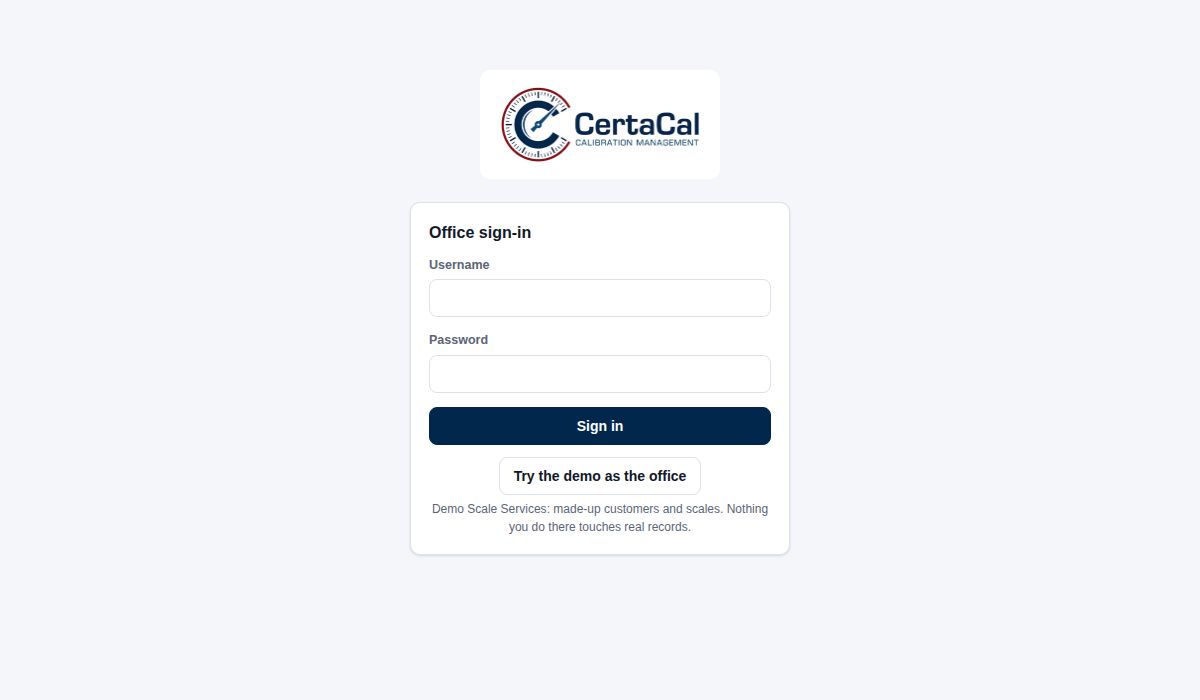
/office/(for examplehttps://yourcompany.certacal.net/office/). It works on a computer, a tablet or a phone. - Type your username and password and click Sign in. Usernames are first initial and last name (for example jsmith); capitals don't matter.
The company's web address (for example certacal.net) opens the CertaCal welcome page, with Log in and Try the demo buttons.
The first time an owner or office admin signs in to a new company, CertaCal opens Set up your company: the company's name, how certificate numbers look (see Settings › Certificates & reports › Certificate setup) what the job number is called on certificates, and the company's time zone and date format. Save and start opens the office; until then no other page opens for them.
If you forget your password, ask an office admin or the owner to set a new one for you (Settings › Company › Users → Reset password).
Your name and role are at the bottom of the menu, so you can tell at a glance whose account is open on a shared computer.
The demo company
Try the demo as the office on the sign-in page (and on the welcome page) opens a practice company: made-up customers, scales, test weights and jobs, some finished and waiting for review. Use it for training, or to show CertaCal to a prospective customer, without touching real records. At the demo's own address there is no username and password: the sign-in page has one link each for the office, the technician app and the customer portal. The demo goes back to the start every night.
The practice customers are in California, Arizona and Illinois. The Illinois one, a grain cooperative, shows Illinois's own placed-in-service forms: under Government reporting there's one for a new truck scale, marked as sent to the Illinois Bureau of Weights and Measures, and one for a floor scale adjusted on a routine visit, ready to send. The Bureau is on the Illinois tab of Government reporting › Offices, and the company's Illinois registration in Settings › Calibration › Agency & licenses.
- A DEMO MODE strip runs across the top of every page. Other visitors use the same demo at the same time and see what you enter, so don't enter real customer information.
- Certificates are stamped DEMO, and nothing is emailed: no customer emails, no placed-in-service reports, nothing sent to ERPNext or QuickBooks.
- Reset demo in the strip puts the practice company back to the start, ready for the next person.
The technician app has its own Try the demo as a technician button, signed in to the same practice company. The customer portal has Try the demo as a customer: one of the practice customers, with its scales, last year's certificates and a troubleshooting report. A service request made there shows up on the demo office's Jobs page. In the demo office, the Technician app and Customer portal links (click your name at the bottom of the menu) open each one signed in as the demo person.
CertaCal's administrator can switch the public demo off for the whole site. It resets itself every night.
Your training company
Your company has its own training company, at your company's address with -training after its name: for example acme-training.certacal.net for acme.certacal.net. Click your name at the bottom of the menu and choose Training company to open it.
- Sign in there with your usual username and password. You get the same role as in the company; nobody needs a new account.
- It's a copy of your company's own setup: your scale types and tests, your work instructions (SOPs), tolerance rules, checklists, comment templates, certificate layouts and settings, with made-up customers, scales and two years of history. New technicians can learn your procedures without touching real records.
- A striped amber bar runs across the top of every screen: Training company: practice only. Nothing here is sent to customers. It can't be closed, TRAINING shows beside Office in the menu and at the start of the browser tab's name, and Go to <your company> in the bar takes you back to the real one. Certificates are stamped TRAINING, and nothing is sent: no customer emails, no placed-in-service reports, nothing to ERPNext or QuickBooks.
- Practise here, not in your company: practice work in the real company is real work, and it's put right by voiding or amending it, never deleted.
- The owner, an office admin or the quality manager can click Reset training company in the bar: everything done there is cleared, your setup as it is that day is copied in again, and the sample visits are dated from that day.
- Only your company's people can sign in there.
Finding your way around
The dark bar down the left side is the menu. It is the same on every page, grouped under Work, Records, Compliance and Business; you see only the items your role uses.
| Menu item | What's there |
|---|---|
| Home | What needs attention today, and the headline numbers. |
| Jobs | The schedule board, job requests from technicians and customers, and locations that need a visit booked. The In progress tab has the visits technicians are working on now. |
| Review | Finished jobs waiting for review, with the program's quality score and the scales to audit. Approving a job issues its certificates. |
| Customers | Every customer account, its locations and its scales. |
| Scales | Under Customers: every customer's scales in one list. Search, filter by due date or status, add a scale. |
| Test weights | The company's weight kits and their certificates, recalls and out-of-tolerance reviews. |
| Government reporting | The reports that go to county or state weights and measures (placed-in-service) and, for scales under the Packers & Stockyards Act, to USDA. The Offices tab lists the offices they go to, for every state you work in. |
| Reports | Business and quality reports: calibrations due, scales tested, fails, response time, weights, service agreements, job quality scores, nonconforming work, a full scale export. |
| Quotes | Service agreement quotes for customers and prospects, and the prospects themselves (while quotes are on). |
| Money | What closed jobs billed by month, technician and customer, split into flat-rate labour, hourly labour and parts (owners and office admins). |
| Settings | Users, agencies and licenses, certificate wording and review settings, tests, work instructions, checklists, lists, and integrations (API, webhooks, QuickBooks, ERPNext). |
Small numbers next to a menu item are counts that need you: red means something is late or wrong (overdue scales, weights without a current certificate, job requests), grey means work is waiting (jobs to review).
Click your name at the bottom of the menu for:
- Help: the guide for your role, in a new tab (search it for any word, such as "shift test" or "merge"). Every guide is also listed at
/help/on the CertaCal address. - Technician app: the phone app in the same browser, useful for seeing what the technician sees.
- Terms.
- Appearance: Light, Dark or Same as this device (the default, which follows your computer's or phone's own light or dark setting). Your choice follows you to every device you sign in on, in the office, the technician app and the customer portal. In the demo, which everyone shares, it stays on the device you chose it on.
- The version, e.g. CertaCal 2026.10.20 · 43f0e4c. Click it to copy it when you report a problem.
- Sign out.
When CertaCal has been updated since the page was opened, a bar at the top says A new version of CertaCal is ready; click Update.
Notices from CertaCal
Now and then a notice from CertaCal shows across the top of the page: planned maintenance when CertaCal will be unavailable, a new feature, or an important change. Close an ordinary notice with × and it stays closed, on every computer and phone you use. A notice marked Important (maintenance, for example) can't be closed; it goes by itself when it ends.
The Home page
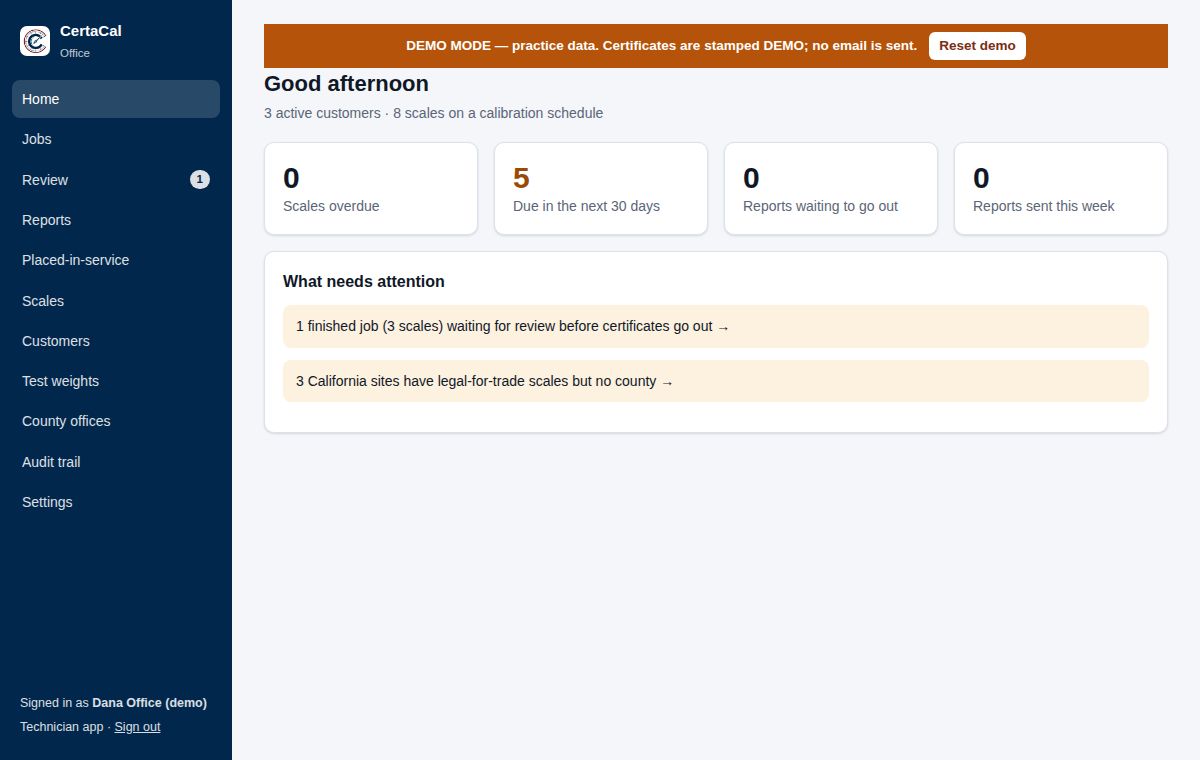
The four boxes at the top are the headline numbers: jobs overdue and jobs due soon (in the next 30 days, or your company's own due-soon days) (one job per location, with the number of scales in brackets), placed-in-service reports waiting to go out, and reports sent this week. Click a box to see the list behind it.
Tasks, above it, lists what the office must do by a date: the reference standards and test-weight kits to send for calibration before they're due (see Test weights), and each scale that failed, to follow up within two days with the customer, a repair or a quote (it opens the scale). Yours come first, then the rest with who they're for. Done ticks one off (it's kept in the audit trail). A new due date makes a new task.
What needs attention is your to-do list, in a tile for each area of work: Field work, Review & sending, Government reporting, Weights & standards, Quotes & agreements, Quality (open NCRs) and Records & setup. Each line is a count and what it's of; click it to open the page where you deal with it, or point at it for more. The colour of the count says how urgent it is: red for overdue or broken, amber for waiting on you, blue for information, green for good news. Tiles with red come first. An area with nothing waiting shows as a green all clear below the tiles. You only see the areas your role can open. It includes:
- job requests from technicians and customers, and scales technicians added in the field;
- finished jobs waiting for review, and approved jobs whose email to the customer failed;
- placed-in-service reports that are late, due today, missing information, or ready to send;
- test weights without a current certificate, weights due for recertification, and weights that came back from the lab out of tolerance;
- reference standards that came back out of tolerance, and test weights or reference materials overdue for an intermediate check;
- service agreements due for review or ended without renewing;
- legal-for-trade scales with no CoC number, and California locations with no county.
When everything is handled, it says "Nothing waiting."
How saving works
Most fields in the office app save by themselves when you leave them: type a change, then click somewhere else or press Tab. A small message at the bottom of the screen says "Saved". Switches and drop-down lists save the moment you change them.
Longer pages (a scale's details and tests, a customer's page) also have a Save bar at the bottom. Clicking it saves the field you are still in and confirms that everything is saved. Use it before you leave the page if you're not sure.
Forms that create something new (Add a customer, Add a scale, Schedule a visit) have their own button at the bottom, and nothing is created until you click it.
What your role lets you do
What you see in the menu, and what you can change, depends on your role. A page you can't use isn't shown.
- Reviewers see the review side of the office: Home, Review, In progress, Jobs, Scales, Customers, Test weights and Insights. They can audit scales, approve or send back jobs, approve or return single calibrations, and re-send job packages. Everything else is view-only.
- Office admins, quality managers and owners see and can change everything in the office app. Approving procedures, tolerance rule sets, company policies, certificate wording and amendments is for owners and quality managers.
That's CertaCal's default. The owner can change who may approve each of those, name technical managers who get approvals of their own, and choose which pages office admins, quality managers and reviewers see, in Settings › Company › Role permissions. Owners always see every page; auditors keep what they see; Home is always there; auditors never approve. The same page sets whether people may approve their own work (by default, someone else approves it). A change reaches people already signed in within about 15 minutes.
- Technicians use the technician app. The office can give a technician the Review add-on (Review, In progress and Jobs, to review other people's work) or the Placed-in-service add-on.
- Auditors see every office page except the Company settings (apart from its Audit trail), the Connections and Your CertaCal account settings and the management-only reports (Job quality scores, Your figures against the industry), and change nothing.
Exporting to Excel or CSV is for office admins, quality managers and owners.
The audit trail
Open Settings › Company › Audit trail (auditors see it there too). CertaCal records every sign-in (including refused ones) and every time anyone adds, changes or removes anything, from the office or the technician app. Browsing isn't recorded. Each entry says who, when, from which app, what happened, and, for a change, each field's value Before and After.
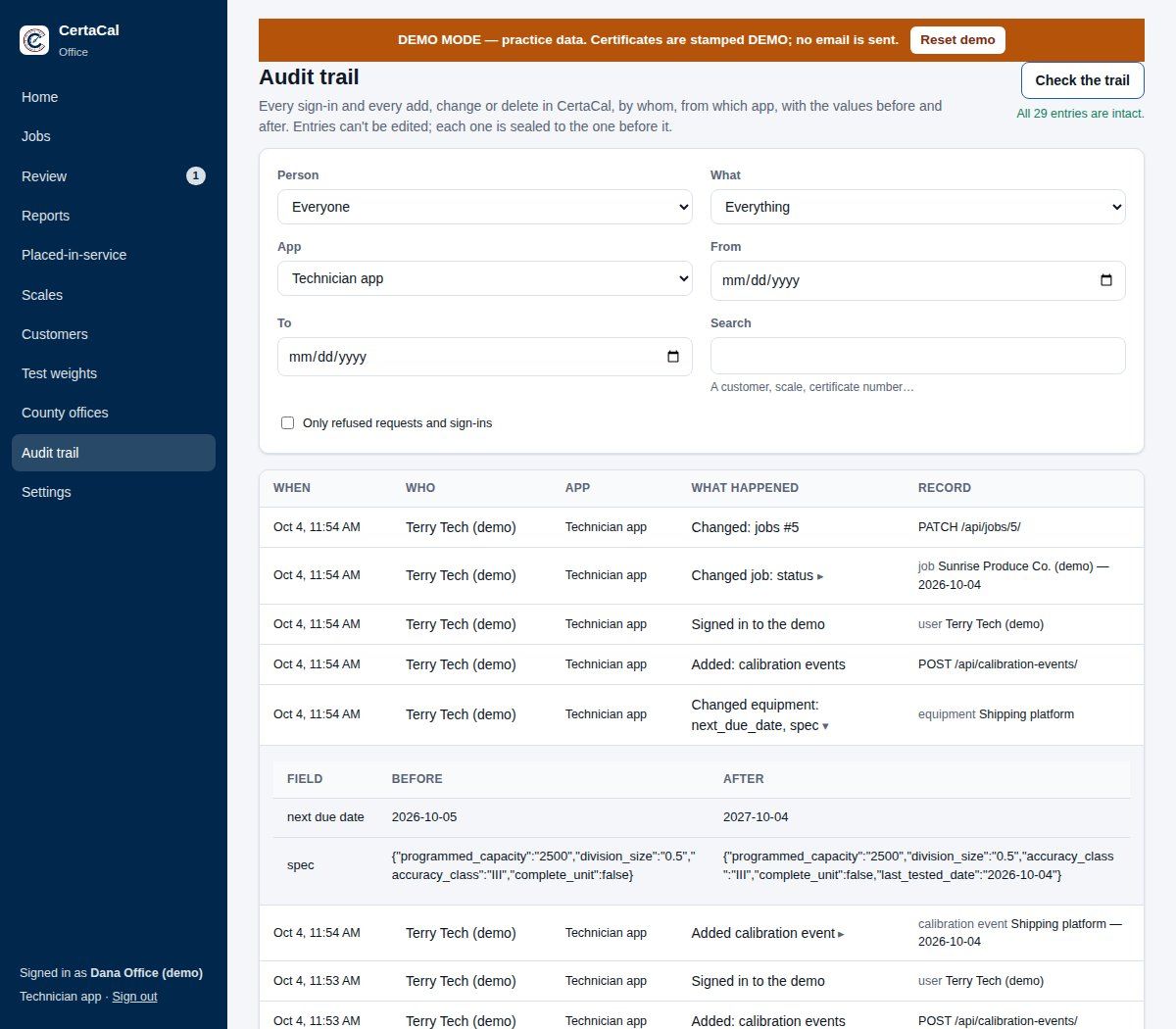
- Filter by Person, What (records added, changed or removed; reviews and status changes; sign-ins), App, dates, or Search for a customer, serial number or certificate. Only refused requests and sign-ins shows attempts that were turned away.
- A scale's and a customer's page each have a Change history button that opens the trail for just that record.
- Entries can't be edited or deleted. Each one is sealed to the one before it, so changing or removing an old entry breaks the chain. Check the trail re-reads every entry and confirms All N entries are intact, or names the first one that was altered.
Review: approving jobs
No certificate goes out until someone other than the technician has checked the work. That check is review. With many scales on a job it isn't practical to read every one, so CertaCal reviews the job as a whole:
- CertaCal scores every calibration from its record: a quality score out of 100. The job's score is the average.
- A reviewer audits a sample: at least 10% of the job's tested scales, and never fewer than one. Every scale that scored under the minimum (80%) must be among those audited.
- Anything flagged is decided one by one: a scale with something to look at is approved or returned on its own.
- The reviewer approves the job once the audits are done, the flagged scales are decided and the job scores at least 80%. That approves and certifies the rest of the scales and emails the customer their certificates and a health report.
Reviewers, office admins, quality managers and owners can review, and so can a technician whose account has the Review add-on. Auditors never can. The person who approves is recorded as the approver. By default nobody approves their own work: if you did the calibration, or helped on it, the Review page says "Your own work — someone else reviews it." The owner can change that (see One-person companies below).
One-person companies
When one person does everything, there's nobody else to approve their work. The owner chooses how CertaCal handles that in Settings › Company › Role permissions, under Approving your own work:
| Choice | What happens |
|---|---|
| Someone else approves | The default. Your own calibrations, jobs and amendments go to someone else. |
| Only when no one else can approve (one-person company) | You approve your own work while nobody else active in the company may approve it. Hire or give the Review add-on to a second person and it stops on its own: the page then says, for example, "Ana can approve now, so your own work goes to Ana." |
| People may approve their own work | Anyone who may approve can approve their own work, whoever else is in the company. |
When you approve your own calibration, job or amendment, CertaCal first asks you to tick I have checked this again as the reviewer: readings, standards and certificate. That is a deliberate second look. The approval is recorded as Self-approved (one-person company), or Self-approved, in the audit trail, and the office shows Self-approved beside it. The certificate itself is unchanged. Sending your own work back to the technician needs no tick.
The tick can be turned off with Ask for a second-look tick when approving your own work, unless your certificates print your accreditation: then it is always asked.
> WARNING: ISO/IEC 17025 expects someone other than the person who did the work to review it where possible. If your certificates print your accreditation, or a scale is marked as within your ISO/IEC 17025 scope, choosing People may approve their own work asks you to say why, and the reason goes in the audit trail. Use it only if you don't work to ISO/IEC 17025.
Whatever the choice, auditors never approve, and automatic approval of clean calibrations and Approve the clean ones never approve the signer's own work.
The Review page
Click Review in the menu. The grey number next to it is how many jobs are waiting.
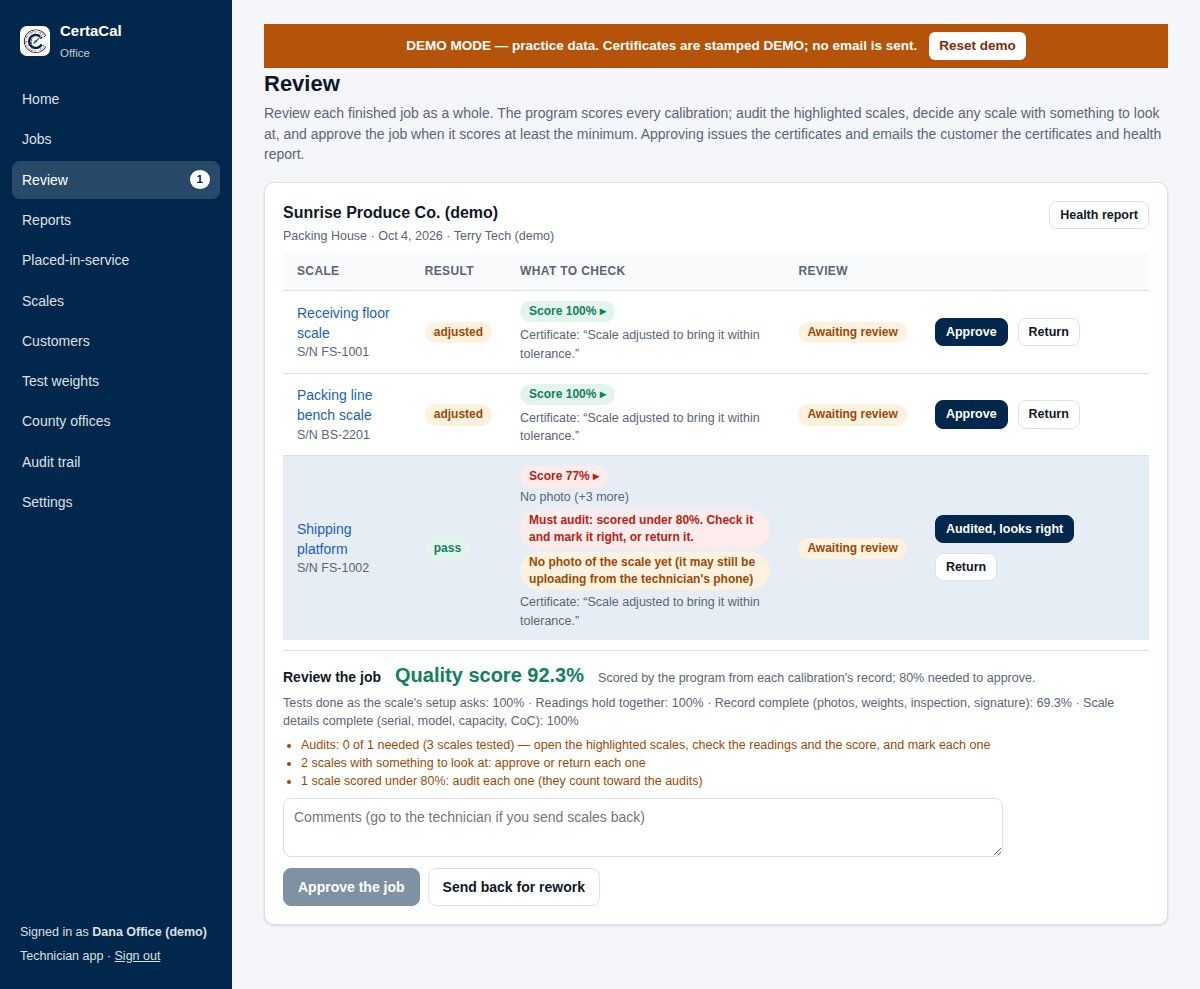
Finished jobs are listed one under another, each folded to one line: the customer, site, date, technician and number of scales, and on the right what the job is waiting for, such as 2 scales to decide, 1 audit left, Ready to approve, or for a closed job Held for payment or Sent. Click the customer's name to open the job (click again to fold it).
An open job shows its Health report button, then a row per scale:
| Column | What it tells you |
|---|---|
| Scale | The scale and serial number. Click the name to open the scale's history. |
| Result | pass, adjusted (passes, but the As Found and As Left readings differ), fail (still out of tolerance when left), or not inspected. |
| What to check | The program's Score for the scale (green, or red under the minimum; click it for the four lines and what lost points), then anything CertaCal wants a person to look at. Nothing to look at means it found nothing unusual. Audit this one or Must audit marks the scales to audit. |
| Review | Awaiting review, Audited, Approved (with the certificate number), or Sent back. |
Under the scales, Review the job shows the job's Quality score, the score on each of the four lines, and a checklist of what's left before the job can be approved.
How the program scores a calibration
Four lines of 25 points each, worked out from the record alone. These are CertaCal's starting values: what each line is worth, what the readings line loses and when readings count as copied are company policies (Settings › Calibration › Company policies, Quality score and Copied readings). A calibration is scored by the policies in force on its date, so approving new values doesn't change past scores.
| Line | What it checks | What loses points |
|---|---|---|
| Tests done as the scale's setup asks | Every test switched on in the scale's setup was recorded. | Each test left out (a share of the 25). |
| Readings hold together | The readings look real and add up. | Readings that look copied (−15); left further off than the company's As Left target with no note (−5 each, up to −10; the target is 1 division unless changed in Settings › Calibration › Company policies); a test load below recommended (−5); Adjusted or Fail with no note (−5). |
| Record complete | Photo (7), test weights used (6) on a current certificate (4), visual inspection (4), the technician's signature for the job (2), temperature and humidity where the scale asks for them (2). | Each part missing. |
| Scale details complete | Serial number, manufacturer, model, capacity, division, location, and the CoC numbers on a legal-for-trade scale. | Each detail missing (a share of the 25). |
Not-inspected and imported calibrations aren't scored. The job's score is the average of its scored scales, so one weak scale doesn't sink a good job: one scale at 50% and three at 100% average 87.5%, which passes. That 50% scale must still be audited.
Auditing scales
CertaCal picks which scales to audit, the same ones every time the page opens:
- every scale that scored under the minimum (Must audit: scored under 80%. Check it and mark it right, or return it.); then
- a fair random pick from the clean scales until the job's share is reached (Audit this one).
The checklist shows Audits: 1 of 2 needed (12 scales tested). For each highlighted scale, click Readings under its name: every test's As Found and As Left readings, the applied load, the error, the tolerance and pass or fail, with the conditions, the notes and the photos. A test with a strain or substitution load says what it was and how much, for example "Certified test weights 1,000 lb + strain load 2,000 lb (material)". That load isn't a test weight, so it's never checked for a certificate and never part of an impact review or a recall; check the photos show what the technician describes. Draft certificate shows the certificate exactly as approving would issue it, stamped DRAFT (for metal detectors, magnets and other devices with their own records, that's where everything shows). Check the readings against the photos and the scale's history, and check the program's score is fair. Then:
- Audited, looks right marks it audited. Undo takes that back.
- Send back sends it back to the technician (see below). That counts as auditing it.
Any scale you approve or return one by one counts as audited too. You can audit more than the minimum; the highlighted ones are the least you must do.
Approving or sending back the job
- Approve the job turns blue when the audits are done, every flagged scale is decided, no low-scoring scale is left unaudited, and the job scores at least the minimum. It approves and certifies every scale still waiting, closes the job and emails the customer. Add any comments first; they're kept with the review.
- Send back for rework returns scales to the technician. If the job scores under the minimum it can't be approved: sending it back returns every scale that scored under the minimum, each with its score and what the program found ("Quality score 55%: No photo; Not signed"), plus your comments. Used on a job that passed, it returns all the waiting scales.
Each decision is kept as a job review: who, when, the score and its four lines, each scale's score, how many scales were audited, and the comments. Reports → Job quality scores lists them, by job or as each technician's average.
Troubleshooting reports
A job with troubleshooting reports lists them in its box under Troubleshooting reports, with anything to check in red: a load cell that failed or is suspect, a failed check, a scale waiting on parts, or no calibration after the repair. Load cells are judged by the company's limits in Settings › Calibration › Company policies, as they stood when the report was saved. Report opens the PDF. To let a technician change a completed report, reopen it (set it back to draft) from the report; switch this list off under Settings › Certificates & reports › Troubleshooting.
What CertaCal flags for you
| Flag | What it means and what to do |
|---|---|
| Nothing to look at | The scale passed without adjustment, every test was at or above the recommended load, the weights were on a current certificate, nothing was rated Poor, and the scale is on file. Some of these the company can relax (Settings › Calibration › Company policies › Automatic approval: an adjusted scale, a field change to the scale's details, a scale added in the field, a Poor inspection item, a load below recommended, a P&S warning); the rest always count. Still read any notes before approving. |
| Weights: … | A test weight used was expired, had no certificate, or no weights were recorded. You can't approve normally. Either Send back it, or approve with a reason (see Approve anyway below). |
| Weights not suited to this scale: … | Weights heavier than the scale's capacity were recorded on it. The technician app leaves those out of a kit, so this comes from an older draft or app. Check what was really used, then approve the scale on its own or Send back it. |
| Load outside the recommendation | A test was done with less weight than HB44 recommends. Acceptable if the reason is sound (the customer only uses part of the range, weights not available); otherwise return it. A section test marked (above the CLC) put more weight in one place than the vehicle scale's base is rated for (HB44 N.1.3.3.1(a)): check that the CLC on the scale is right, and ask the technician why. |
| Check the readings: identical to the previous calibration | The As Found readings, errors included, are exactly what this scale read last visit. A stable scale can do that, but it is also what copied readings look like. Compare with the photo; ask the technician; return it if in doubt. |
| Check the readings: identical to another scale on this job | Two scales on the same visit drifted by exactly the same amounts at every point. Plausible for identical scales side by side; hard to explain for different models. |
| Check the readings: marked Adjusted but nothing changed | The result says the scale failed and was adjusted, but the As Found and As Left readings are the same. One of them is wrong on the certificate. |
| Left more than 1 division off | The scale passes As Left, but a reading is more than 1 division from the applied load. That passes HB44; the target is within 1 d. Check the notes say why it couldn't be brought closer; if they don't, ask the technician. |
| Photo required, none yet | The scale or the technician requires a photo. It may still be uploading from the technician's phone; check again later, or return it and ask for one. |
| Poor condition | The technician rated inspection items Poor. They print on the certificate and the health report. Check the wording makes sense to the customer. |
| New scale added in the field | The technician added this scale on the job. Accept it or merge it on the scale's page first (see the Scales chapter); then you can approve. |
| Not inspected, with a reason | The technician couldn't test it (not in use, no access, broken). There's no certificate or sticker. Accept keeps it due. If it's gone for good, change the scale's status too. |
| Certificate: "…" | The note that will print on the certificate. Check spelling and tone. |
| Uncertainty budget (…) | A pipette or piece of glassware: open it to see each test volume's budget, a line per component (repeatability, the balance's calibration and resolution, evaporation, water temperature and density, air density, the balance weights' density, and for glassware the expansion coefficient and meniscus), with its value, distribution, standard uncertainty and degrees of freedom, and U with its k and effective degrees of freedom. A note under Volumetric says when the balance has no certificate uncertainty, or glassware no neck diameter, so that line was left out. |
| For the office: … | The technician's internal note. Read it; it's not printed. Deal with anything they ask for (wrong setup, a customer request). |
How to audit a calibration
Work through these questions for each scale you audit or decide. If the answer to any is no, Send back it.
- Is it the right scale? Serial number, name and location match what's on file.
- Is the result believable? A scale that passed last year and now fails badly, or an adjusted result with no note, deserves a look at the history.
- Were the right tests done at sensible loads? Compare with the scale's test setup (Tests & weights tab).
- Were the weights traceable? No Weights flag, or a good reason recorded.
- Does the certificate note read well? It goes to the customer as written.
- For a legal-for-trade scale: is there a CoC number, and is any tag recorded with its number?
Deciding a scale on its own
A scale with something to look at (any flag other than Nothing to look at) is decided on its own before the job can be approved:
- Approve issues its certificate straight away. The Review column shows the certificate number.
- Send back asks What needs to change? Type it plainly; the technician sees it in the app next to the scale, marked Redo. Their new calibration comes back to Review. By now the technician has usually left the site, so a return usually means a return visit; problems found during the day are better sent back from Jobs › In progress (see the Jobs chapter).
- Approve anyway appears when the weights weren't all on a current certificate. You must say why it can still be issued (for example, "weight recertified 9/12, certificate not yet entered"). The reason is kept on the record.
- Accept (for a not-inspected scale) closes it without a certificate.
With job review turned off (share set to 0), every scale is decided this way, and Approve N clean scales at the top of a job approves every scale marked Nothing to look at in one click. The job closes when every scale is decided.
The customer's email
When the job is approved (or, with job review off, every scale on it has been reviewed), the job closes and CertaCal emails the customer's owner email:
- every certificate from the visit (PDF, with its QR code and digital copy);
- a health report: a one-page summary of the visit, with each scale's result, anything rated Poor, and each scale's reliability: how often it has been in tolerance when we arrived, over every calibration on record (the old system's history included). It's rated Good (85% or more), Fair (65–84%) or Poor (under 65%) once a scale has 3 visits, next to the average for other scales of the same make and model. Where Site settings shows CertaCal reference data, it also shows the reference figure: the share of that make and model (or kind) found in tolerance across many companies' records, naming none. It helps most where you service too few of a model for your own average. A scale rated Poor over 4 or more visits is listed under "What needs your attention". These are CertaCal's starting values; the company can change them in Settings › Calibration › Company policies.
- each completed troubleshooting report (PDF), and a Troubleshooting section in the health report, as far as Settings › Certificates & reports › Troubleshooting allows.
The job's box on the Review page then shows who it was sent to and when. If the email failed, it says why in red. Fix the problem (usually the customer's email address, on the customer's page) and click Send again.
What goes, and when, follows the company's Sending choices (Settings › Certificates & reports › Emails to customers) and the customer's own (its page, Preferences & contact). If the office sends certificates, a closed job shows Ready to send and nothing goes until someone clicks Send. A customer that doesn't take certificates by email shows Not emailed. If the company holds amended certificates for the office, they're listed at the top of the page under Amended certificates to send.
Click Health report on any job to preview it.
A calibration recorded without a job is approved the same way, but nothing is emailed.
Certificate amendments
When someone has asked to amend a certificate (see the Scales chapter), it's listed at the top of the Review page with the reason and what was corrected. The Quality Manager (or the owner) opens Current certificate to check it, then clicks Approve and reissue, or Reject with a note saying why. Approving reissues the certificate as the next revision and emails it to the customer if they had the original.
Closed in the last two weeks
Tick Show closed jobs under the waiting jobs to list the jobs closed in the last two weeks, with their certificates and whether the email went out. Use it to answer "did the customer get it?" The page remembers the tick in this browser.
A closed job whose certificates haven't gone out yet (held for payment, waiting for the office to send them, or a send that failed) is always shown, under Closed, certificates not sent yet, so you can release or send it.
A reviewer's day
- Open Review. Work through the oldest job first; customers are waiting for their certificates.
- For each job, look at the Quality score and its four lines. A job under 80% can't be approved: read what lost points and Send back for rework.
- Audit the highlighted scales, Must audit first. Open each, check the readings against the photo and history and that the score is fair, then Audited, looks right or Send back.
- Decide every scale with something to look at: approve it, approve anyway with a reason, or return it.
- A scale marked New scale added in the field can't be approved until the office accepts or merges it. Tell an office admin.
- Approve the job. Check its box turns green ("Certificates and health report sent to …"). If it's red, tell the office so they can fix the email address, then click Send again. Yellow Held for payment means the customer's certificates wait until someone releases them: once the PO or payment is in, click Release, note what came in (for example PO 4471), and they go as usual and appear in the customer portal. The owner and reviewers may release, unless your company has changed that in Role permissions.
Looking things up
Much of the office's day is answering questions: "When was this scale last done?", "Did the customer get their certificate?", "Which weights did we use?" Here is where to look.
| Question | Where to look |
|---|---|
| When was a scale last calibrated, and what was the result? | Scales, search the serial number or name, open it, History tab. |
| A customer has a certificate number: whose scale is it? | Scales → Find a certificate, type the number (part of it is enough). Open the PDF, the scale or the customer from there. |
| What's the certificate number? | The scale's History tab (under the date), or the Review page once approved. |
| Did the customer get their certificates? | Review, tick Show closed jobs, or the job's box on the Review page. It shows who it was sent to and when. |
| Which scales does a customer have, and which are overdue? | Customers, open the customer; or Scales with the customer's name in the search. |
| What's booked for next week? | Jobs, then → to next week. |
| Which weights were used on a calibration? | Test weights, open the kit, Recall for the date of the calibration. |
| Has a placed-in-service report gone? | Government reporting → Sent, or All and search by customer. |
| Everything we did in a period | Reports → Scales tested. |
| Who changed this record, and when? | The scale's or customer's Change history button, or Settings › Company › Audit trail for everything. |
| Who's using CertaCal right now? | Settings › Company › Users, the Last active column. |
| How did a job score, and who reviewed it? | The job on the Review page, or Reports → Job quality scores. |
Calibrations brought over from the previous system appear on each scale's History tab marked Imported, with a button for the original certificate PDF and the job summary. They are read-only.
Reading the evidence
When a flag makes you look closer, open the scale (click its name on the Review page). The History tab lists every calibration, with each test's result. Compare:
- This visit against the last one. A scale that passed with no adjustment for years and now fails badly may have been damaged, or the wrong weights may have been used.
- The tests done against the setup. The Tests & weights tab shows what the office asked for. A missing test, or a load well below the setup, needs a reason in the technician's notes.
- The program's score against the record. Click the scale's Score to see the four lines and what lost points. If the program missed something (a photo of the wrong scale, readings that don't match the photo of the indicator), return the scale and say what you found; the score only reads the record.
- The result against the readings. Adjusted means the As Found and As Left readings differ: the technician changed something. The result is worked out from the readings, so a wrong result means a wrong reading. The customer may need to know that product weighed since the last visit could have been off. Make sure the certificate note says what was done.
- Tags. A red-tagged scale that passes needs the tag number and who approved its release; those come through on the placed-in-service report.
When you're not sure, return it with a question rather than approving. A returned calibration costs a few minutes; a wrong certificate can cost a customer.
Glossary
| Term | Meaning |
|---|---|
| Acceptance tolerance | The tighter HB44 tolerance for a new, newly installed or just-repaired device. |
| Accuracy class | I, II, III, III L or IIII — how precise the scale is designed to be. Sets its tolerances. |
| Adjusted | Result when a scale passes As Left but its As Found readings differ from the As Left readings: something was adjusted. |
| Applied load | The certified weight actually placed on the scale for a test point. |
| As Found | Readings before any adjustment or repair. |
| As Left | Readings after your adjustments, as you leave the scale. |
| Audit (of a scale) | A reviewer's hand check of one scale on a job: its readings, photo and the program's quality score. |
| Audit trail | CertaCal's sealed record of every sign-in and every add, change or delete, with before and after values. |
| Build (increasing load) test | Readings taken as weight is added in steps. |
| Certificate | The customer's record of a calibration. Issued by CertaCal when a reviewer approves the job (or the calibration). Has a number, a QR code to verify it, and a digital (DCC) copy inside the PDF. |
| CLC | Concentrated load capacity: the most a vehicle scale section is rated to carry. A section test above it is allowed but flagged. |
| CoC | Certificate of Conformance — the NTEP or CTEP number showing a legal-for-trade model is type-approved. |
| County sealer | The county weights-and-measures office in California that receives placed-in-service reports. |
| DCC | Digital Calibration Certificate: a machine-readable copy of the certificate, embedded in the PDF. |
| Demo company | A practice company with made-up data, opened with Try the demo. Certificates are stamped DEMO and nothing is emailed. |
| Displayed weight | What the scale's indicator shows, written with every decimal place it shows (20.00, not 20). |
| Division (d) | The smallest step the indicator shows. |
| Drop (decreasing load) test | Readings taken as weight is removed in steps. |
| Error | Reading minus applied load. |
| HB44 | NIST Handbook 44 — the U.S. rules and tolerances for commercial weighing and measuring devices. |
| Health report | The summary page emailed to the customer with the certificates for a job. |
| Impact review | When a test weight or reference standard comes back from the lab out of tolerance, the check of every calibration it was used on since its last good certificate. |
| Intermediate check | A check of a test weight or reference material against a known reference between lab calibrations: every six months unless your company policy says otherwise. |
| Job | One visit to one customer location, with the scales to be done. |
| Job review | The reviewer's decision on a whole job: approved or sent back, with the program's score and the scales audited. |
| Kit | A set of the company's test weights that travel together, with a certificate. |
| Legal for trade | A device used to buy or sell by weight. State-regulated. |
| Location (site) | One address of a customer. A customer can have several. |
| Maintenance tolerance | The HB44 tolerance for devices in service. Used for routine calibrations. |
| N/A (not inspected) | A scale that couldn't be tested on the visit, with the reason. |
| Placed-in-service report | The form telling weights and measures a legal-for-trade device was installed, repaired, moved or removed. |
| Quality score | CertaCal's own score (out of 100) for a calibration, worked out from its record: tests done, readings, record complete, scale details. A job's score is the average. |
| Recall | Finding every certificate a weight was used on, e.g. when a weight is found out of tolerance. |
| Reference standard | A certified weight used as the "known" value. |
| Review | The office check of a job (or a calibration) before its certificates are issued. |
| Service agreement | A customer's or location's contract for regular service: its prices, how often visits happen, and its term. |
| Shift test | The same weight placed on each corner or quarter of the platform. |
| Tag (red / blue / yellow) | A weights-and-measures inspector's mark: out of service / stop-use / warning. |
| Tolerance | The largest error allowed at a test load. |
| Traceability | The unbroken chain of calibrations linking our weights to national standards. |
| Uncertainty | An estimate of how far our own measurement could be off. |
| Work instruction | The written procedure for a kind of scale, shown to the technician. |
| Works in the field | A setting for an owner, office admin or quality manager who also does calibrations: they can be dispatched jobs. |